Outlook - Send Bulk messages from Shared Maibox:
About:
This guide explains how to send bulk messages using Microsoft Word Mail Merge. Mail Merge allows you to create personalised emails for multiple recipients at once, using data from a spreadsheet or contact list. Instead of sending the same message manually to each person, Mail Merge automatically inserts individual names, email addresses, and custom details into each message, saving time and ensuring accuracy.
1, You must have access to the shared email before testing this, or else it will send from your personal Helly Hansen email address.
2, You must connect the Shared Mailbox to your outlook. This tutorial will show you how.
Connect the Shared Mailbox to your Outlook Classic:
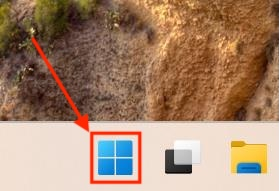
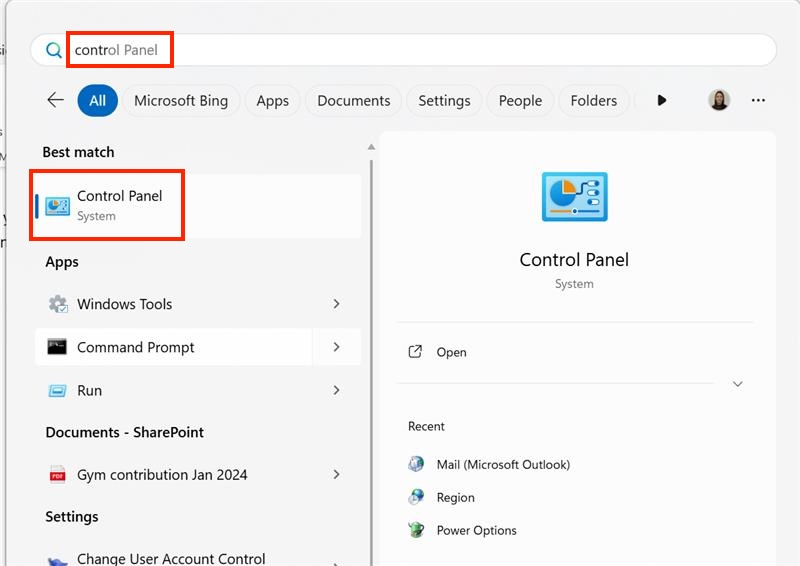
1, First click on Start and then search for Control Panel.
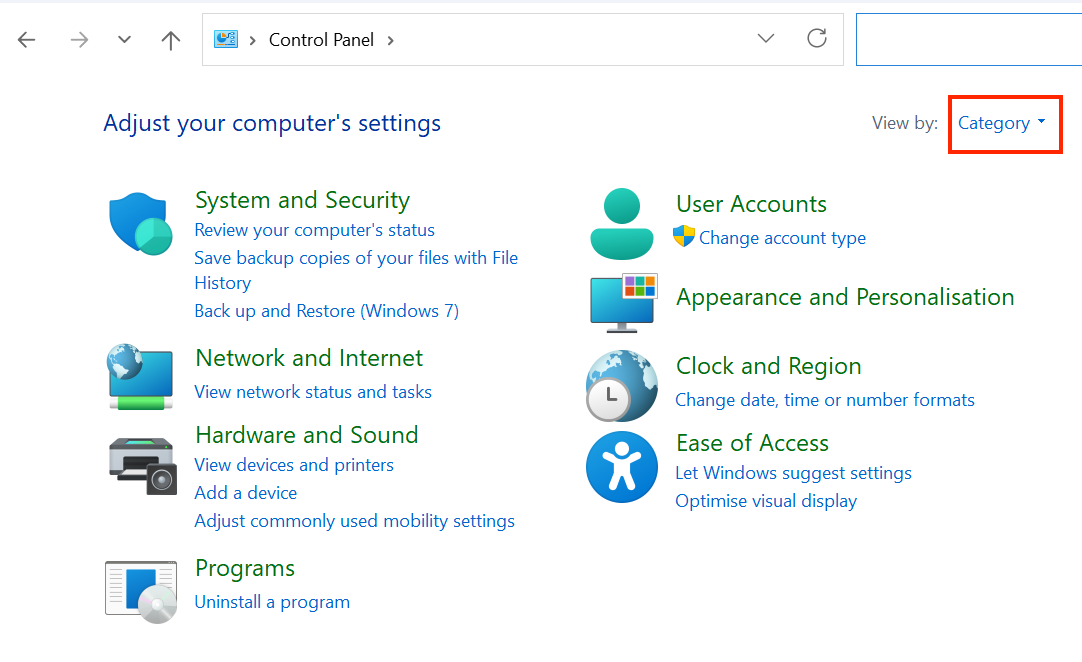
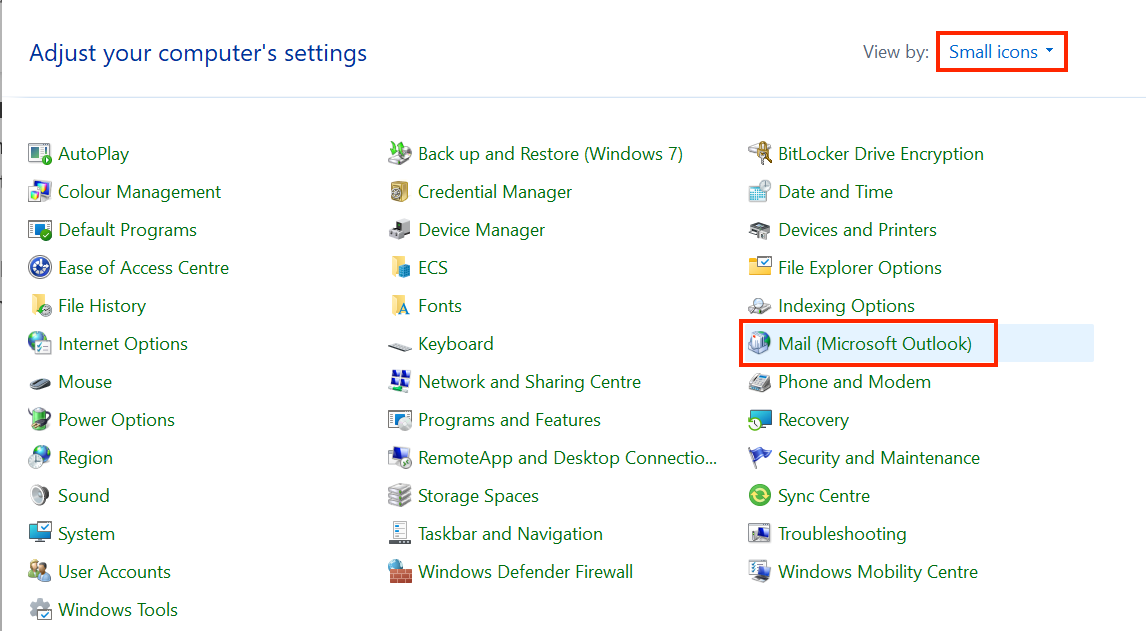
2, Click the Category in the top right corner, and change it to Small icons. Then click the Mail (Microsoft Outlook) option.
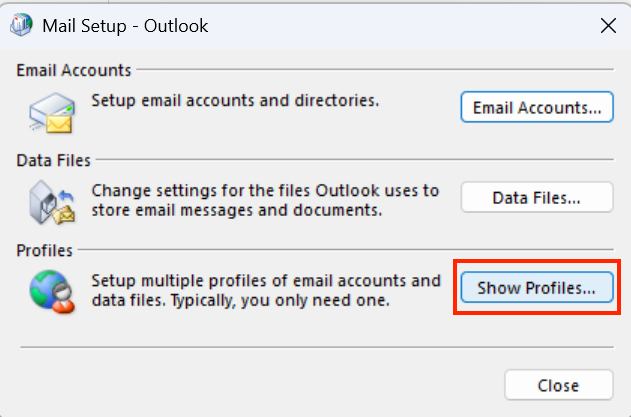
3, Wait a second, and then a pop-up will appear somewhere on the screen, or even behind the already opened windows. Click Show Profiles.
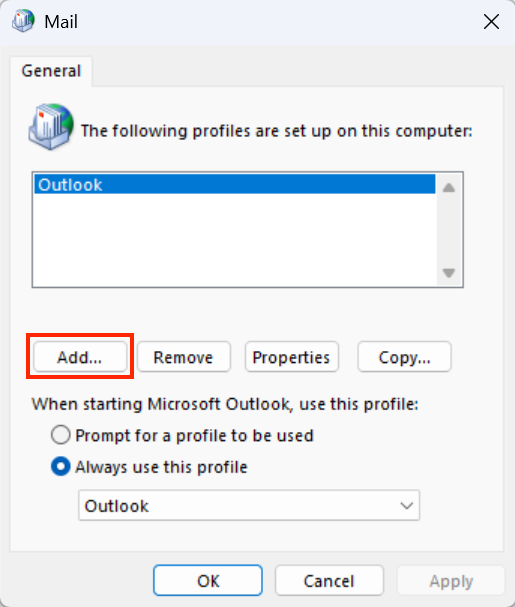
4, Then click Add..
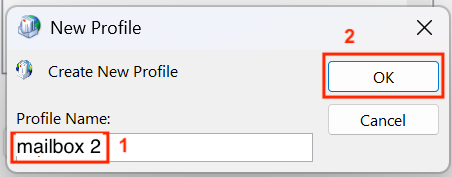
5, Give the Shared Mailbox a name. Its up to you what you call it, but I reccomend to keep it similar to the Shared Mailbox name. Click OK.
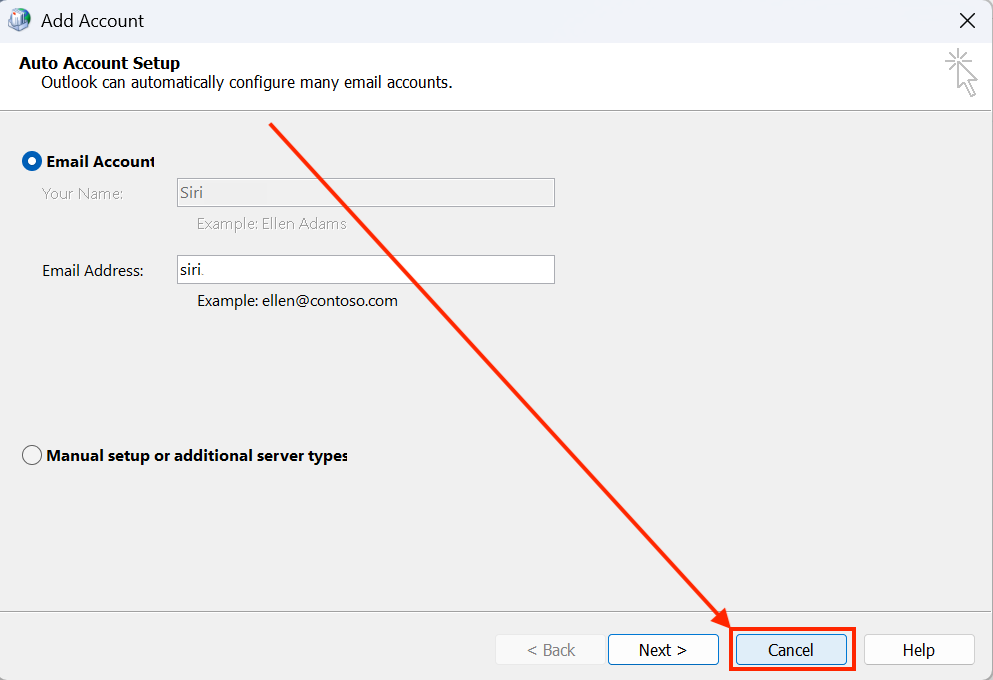
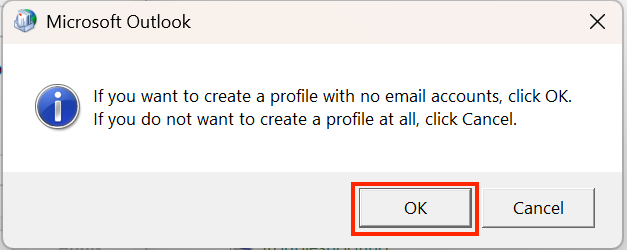
6, Now click Cancel. This is important. Start over if you miss-click here. Then click OK.
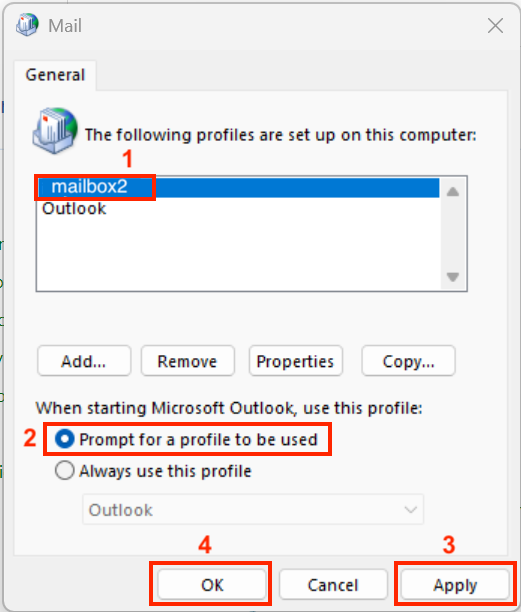
7, Check if the newly created profile shows up, and make sure to mark the Prompt for a profile to be used, before clicking Apply and then OK. Now close everything related to outlook.
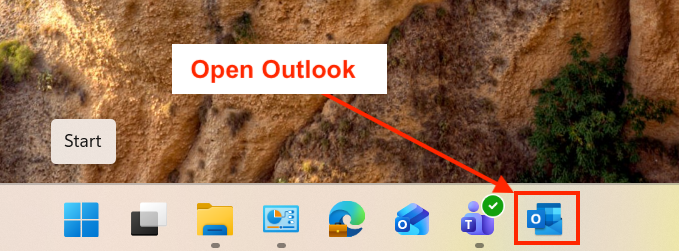
8, Make sure the outlook is closed. Then open it again.
9, A pop-up will appear. Click the drop menu and choose the mailbox2 profile you created earlier. Click OK.
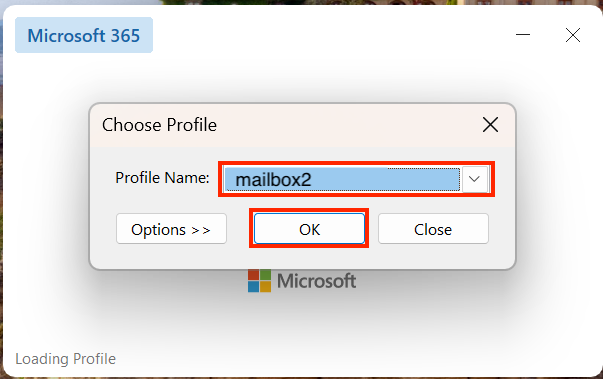
The Outlook option mailbox2 is your shared mailbox business account.
The Outlook option outlook is your private business account.
10, Now this is important! Remove your private business email address here, and write the Shared Mailbox address instead! Then click Connect.
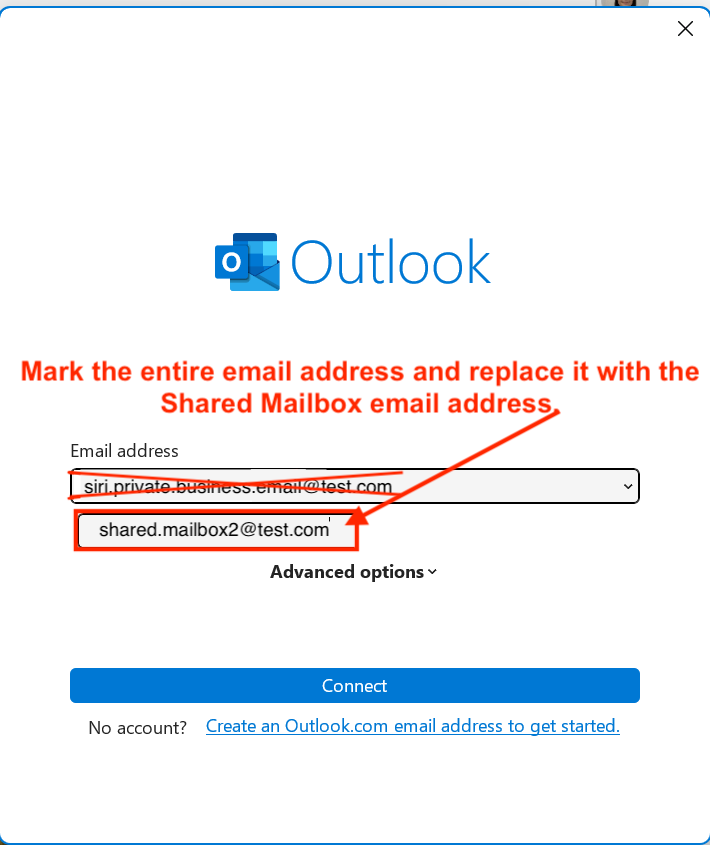
11, Choose the option Sign in with another account.
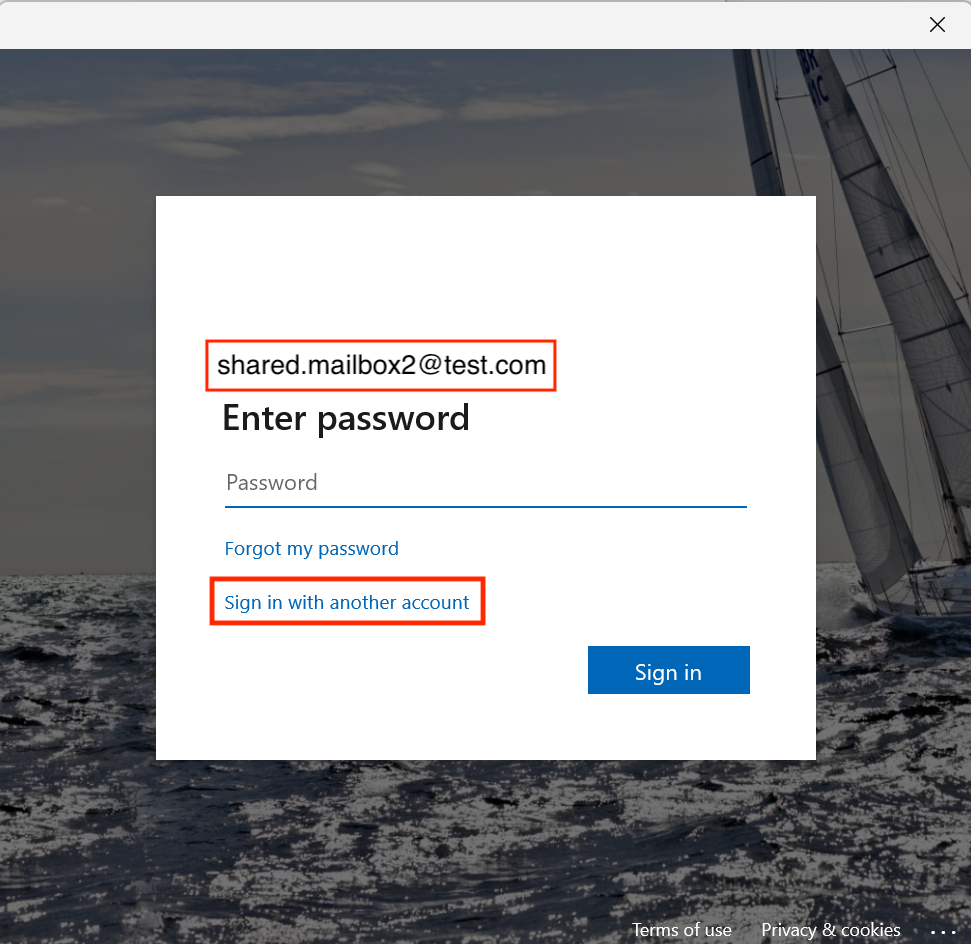
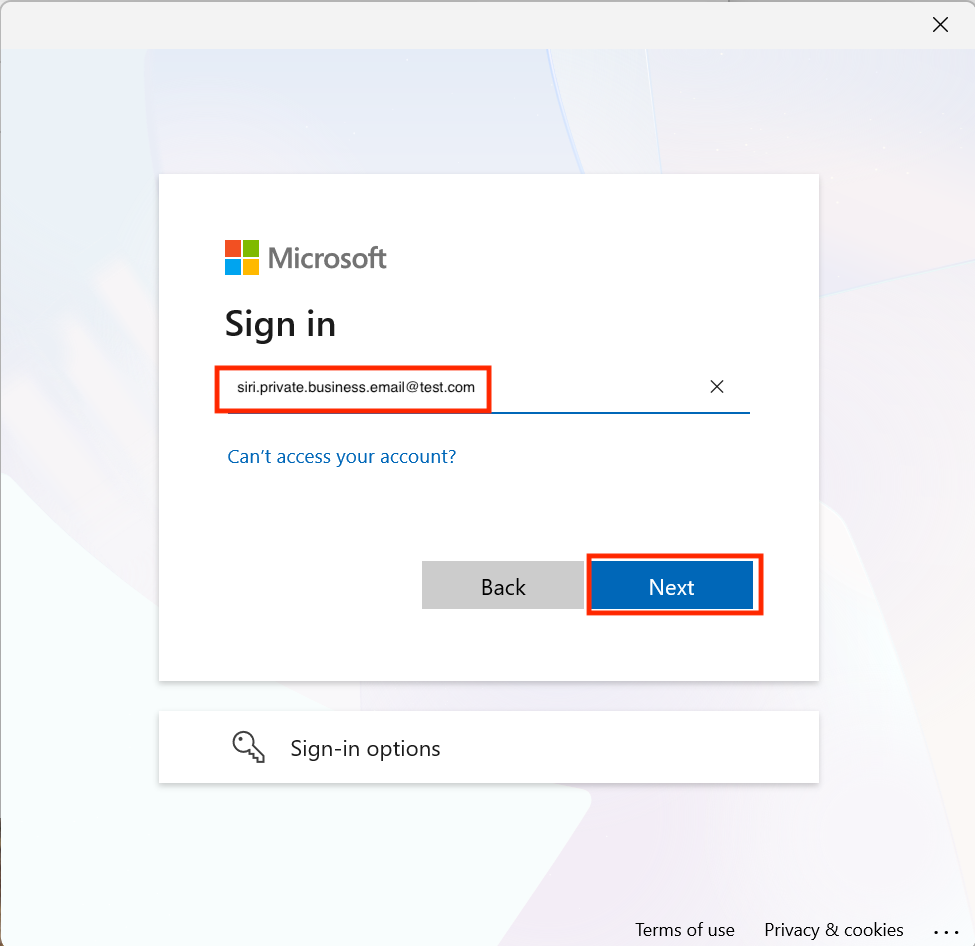
12, Write your private business email address and click Next.
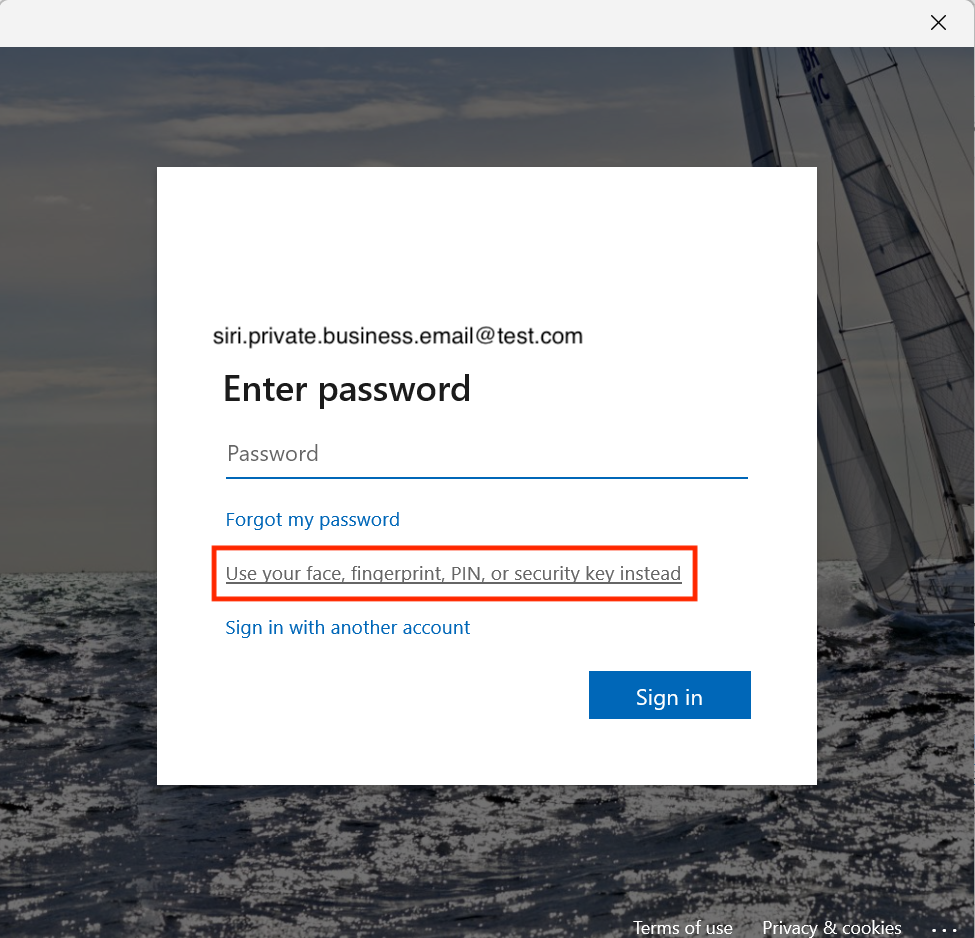
13, Then choose the option Use your face, fingerprint, PIN or Security key instead.
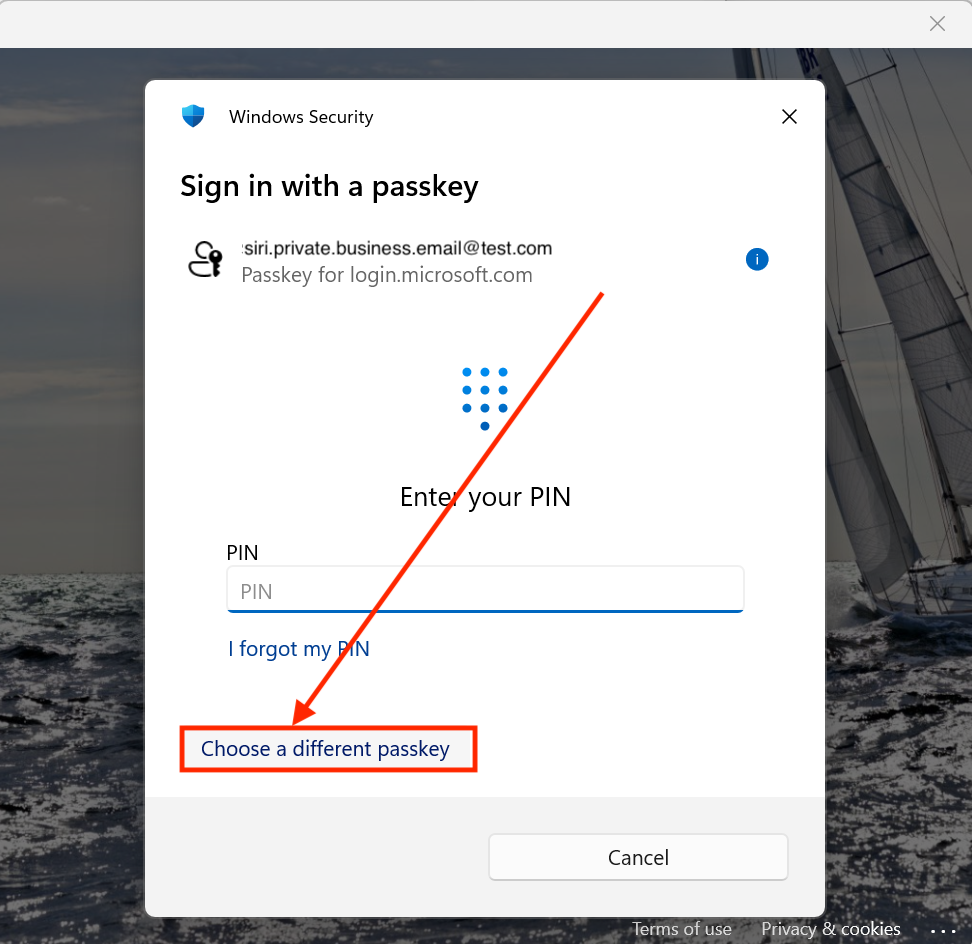
14, Then choose the option Choose a different passkey.
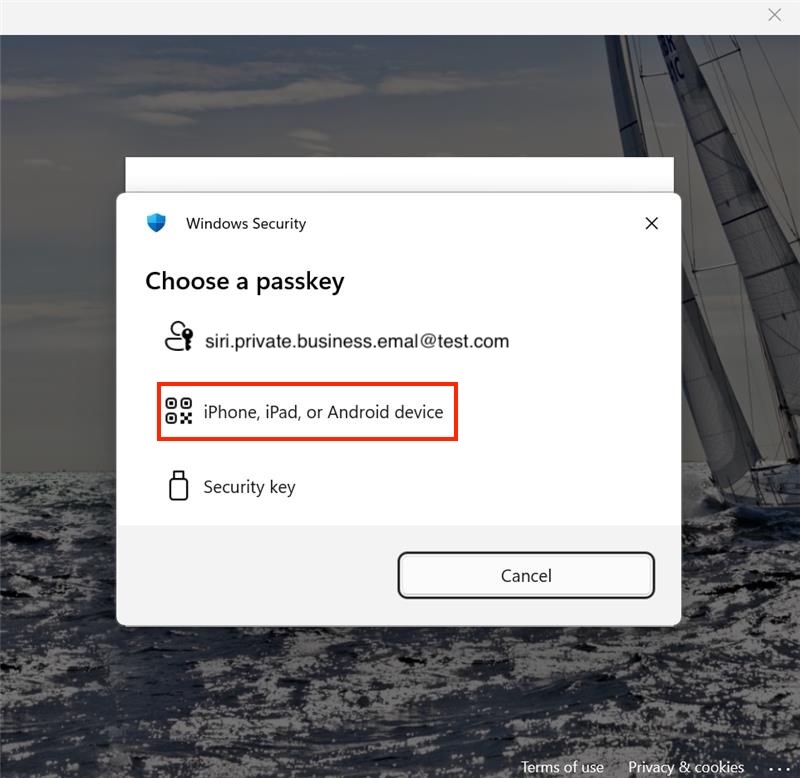
15, Now click iPhone, iPad, or Android device.
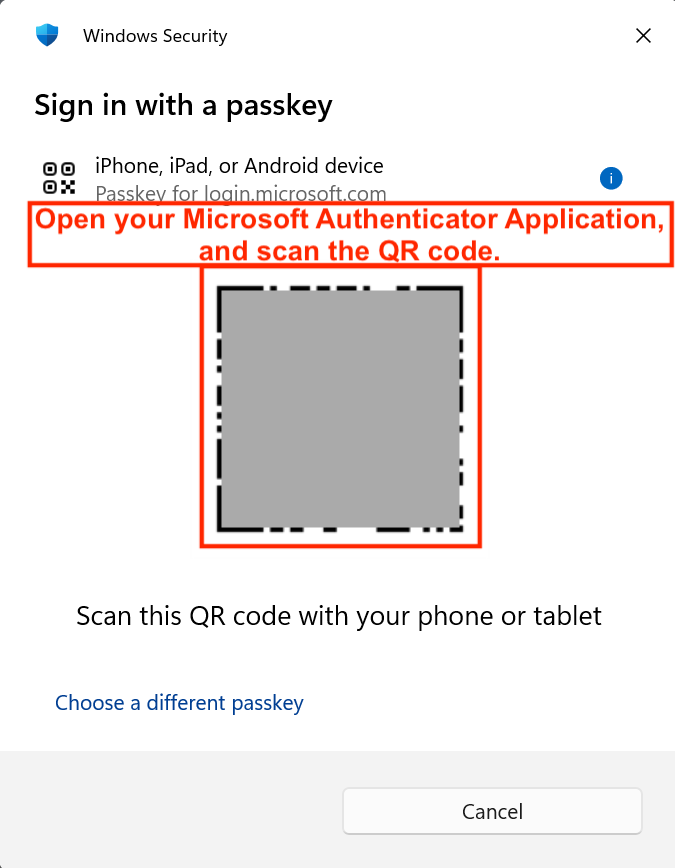
16, Then open your Microsoft Authenticator App and scan the QR code. Follow the steps on your phone.Then when the authentication is complete, click the Done button.
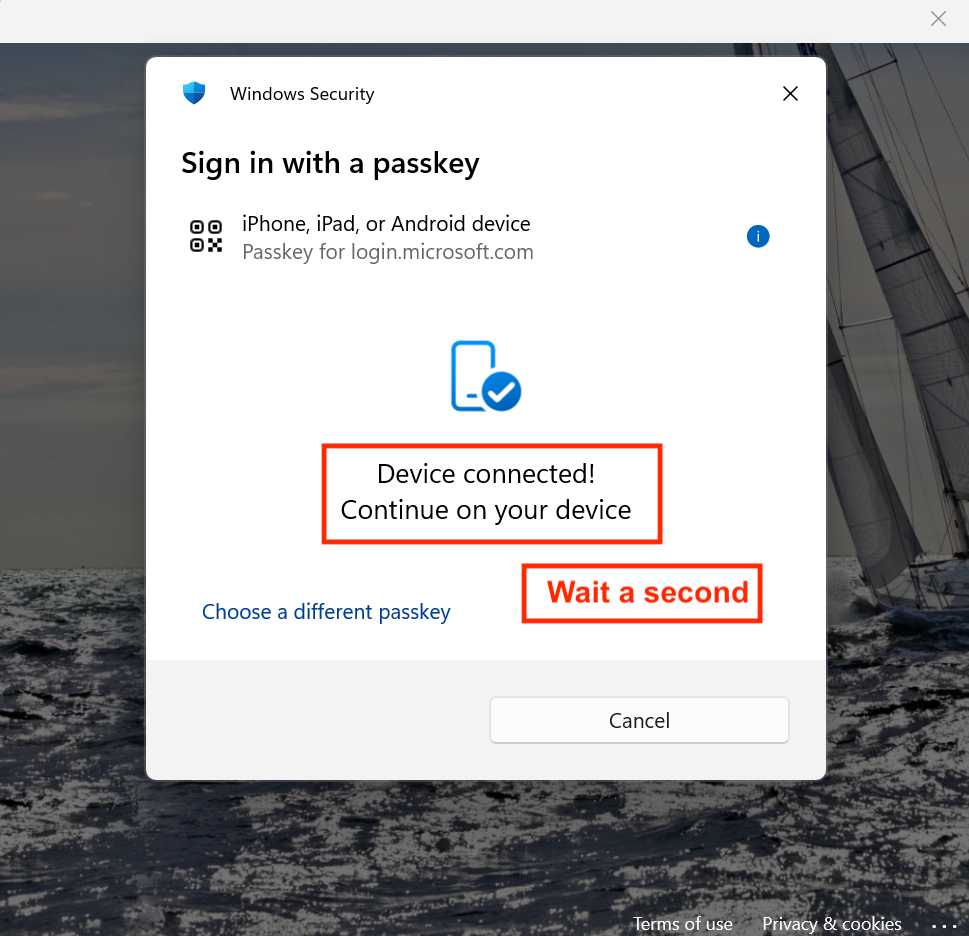
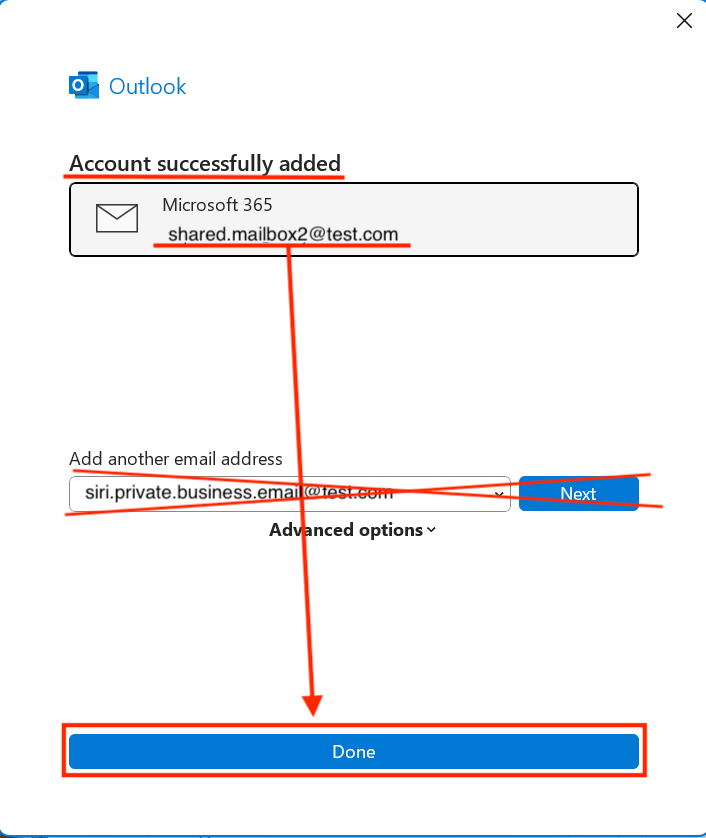
17, Close everything related to outlook again.
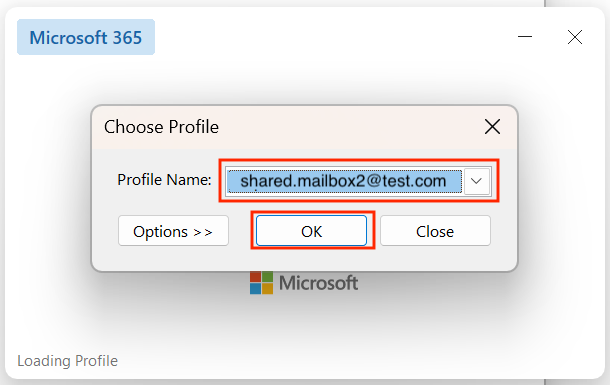
18, Open outlook again.
19, Choose the Shared Mailbox here, and click OK.
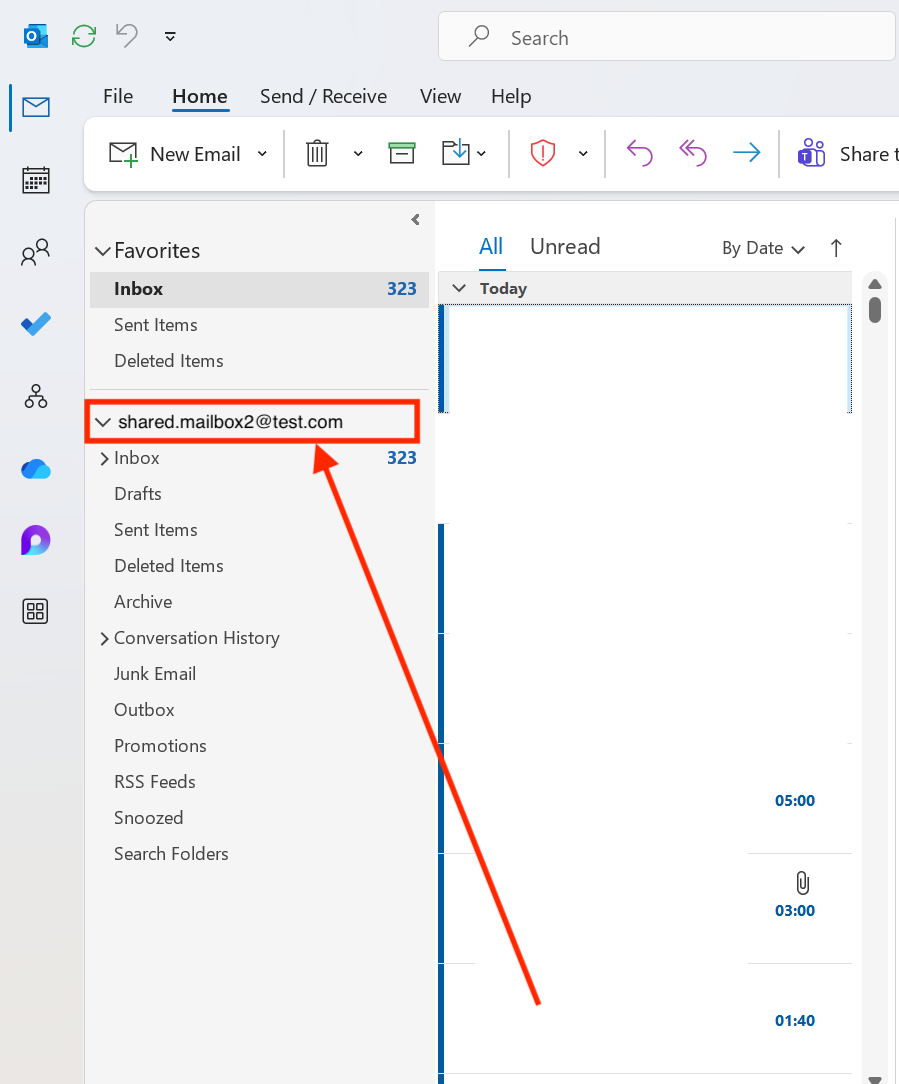
20, Confirm that you are using the Shared Mailbox, but having your personal mailbox disappear, and only the Shared Mailbox appear.
Create a Mail Merge with a Excel Sheet and Word Document:
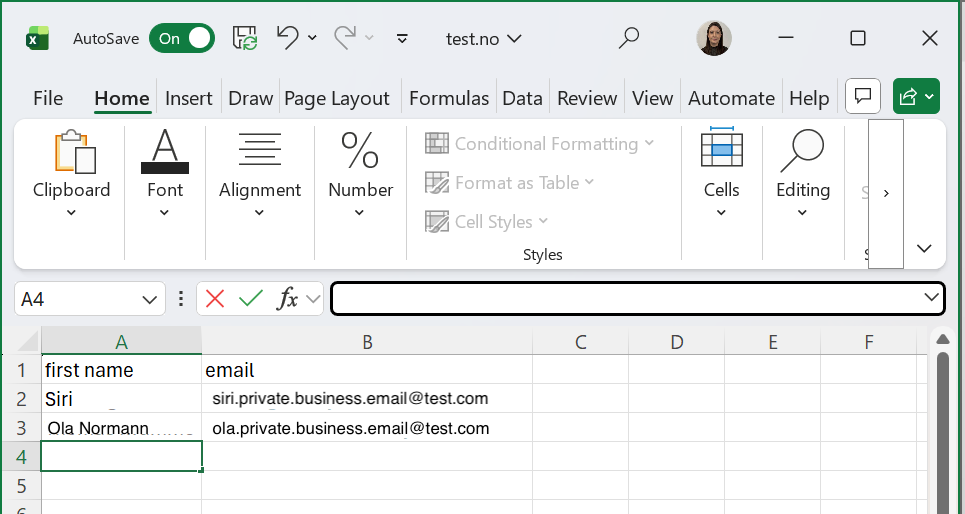
1, First you must have an excel sheet with all the emails you want to send your bulk email to. Additional data can also be added here.
2, Then you need to create a word document, that you have the email formate you want to send.
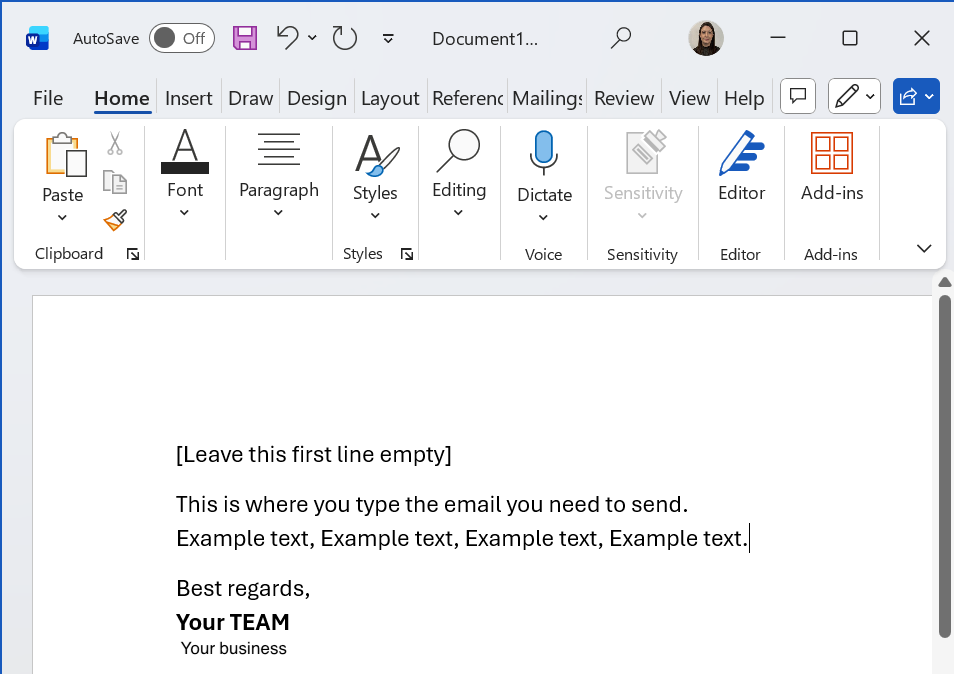
3, Now click the Mailings button in Word.

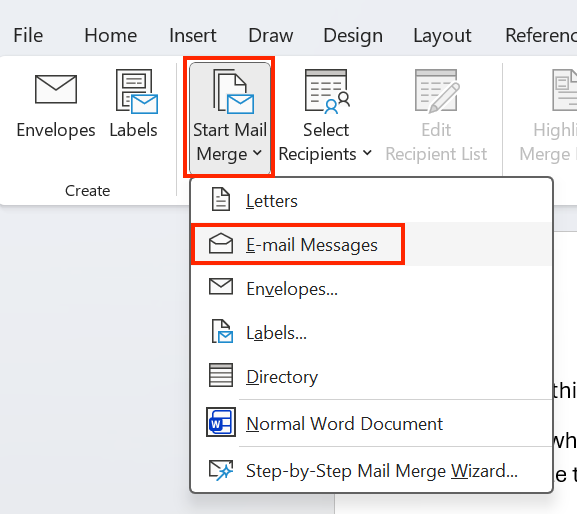
4, Find the Start Mail Merge button and choose the option E-mail Messages. The view will change a little but continue to the next step
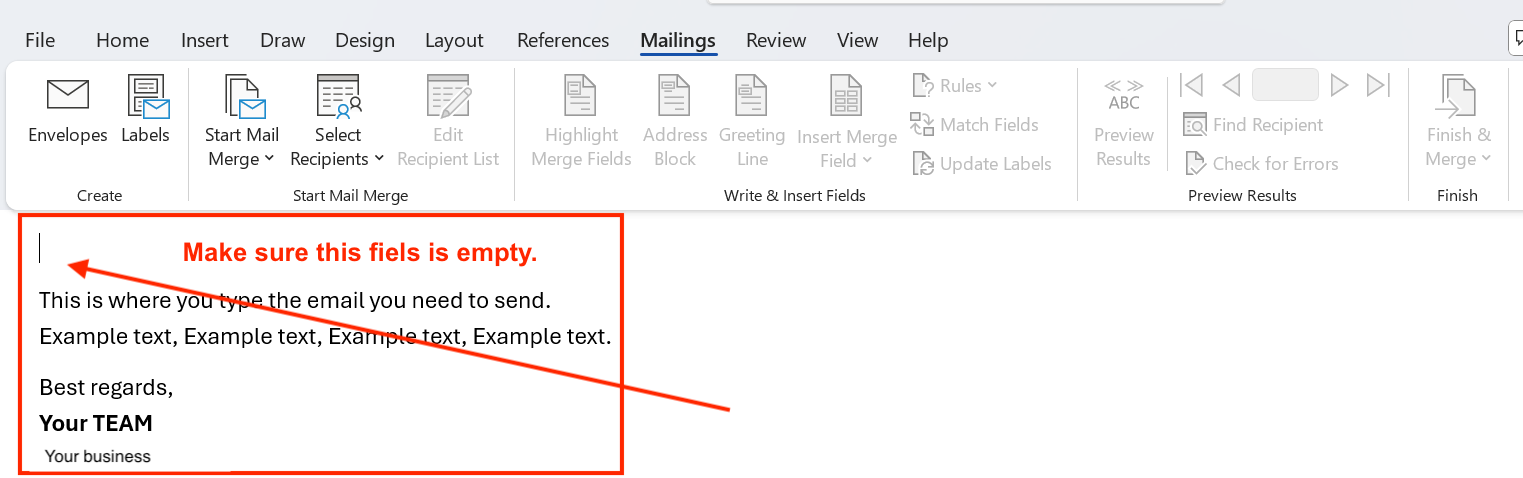
5, Now make sure that the first line is actually empty. So in this example, I will remove the "[Leave this first line empty]" text.
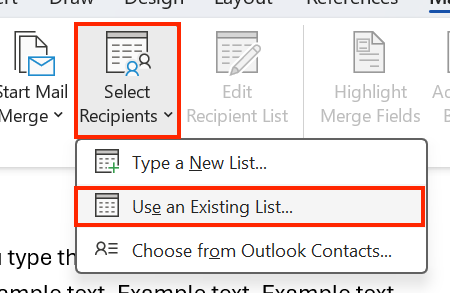
6, Now click the button called Select Recipients and choose the option Use and Existing List...
7, Now open the Excel Sheet with all the emails you need to send the bulk email to. Click Open and then OK.
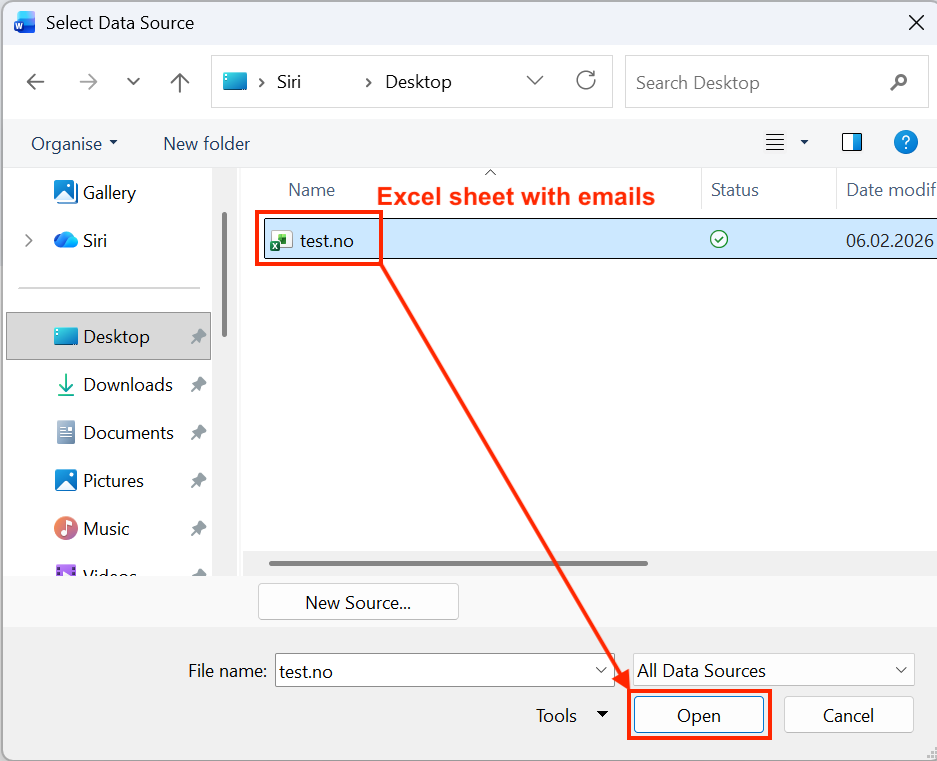
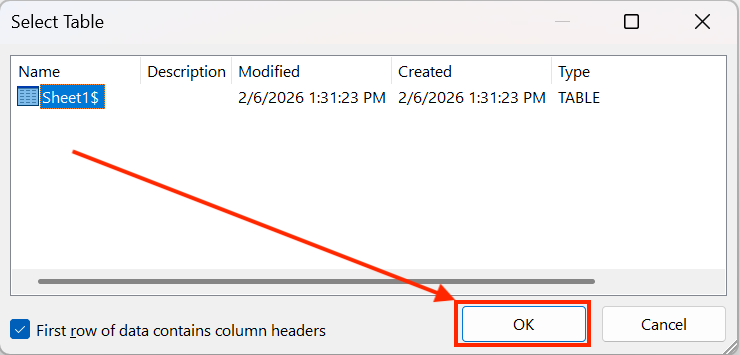
8, Not much will happen visually, but to confirm that it worked, click the Greeting Line.
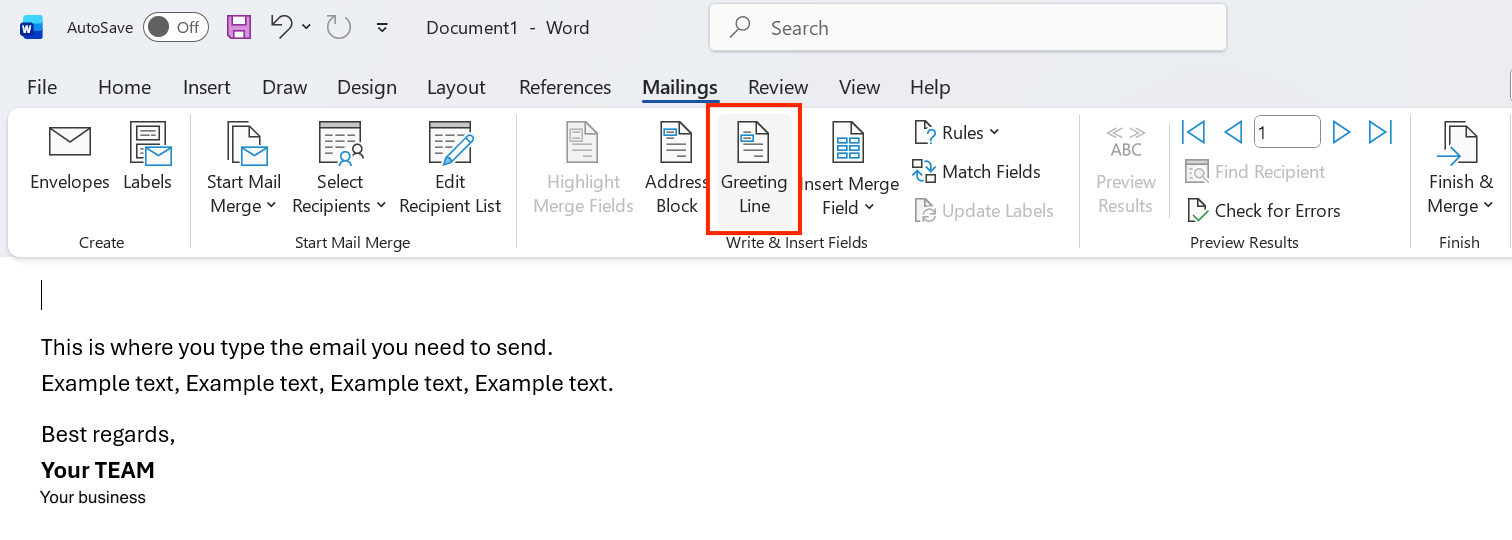
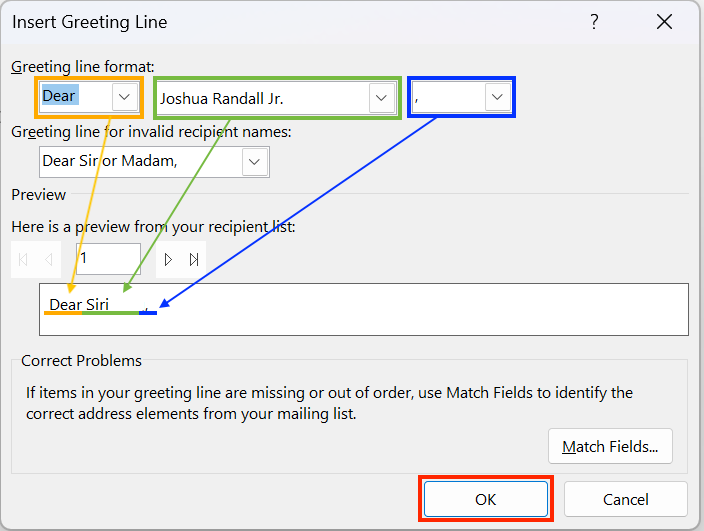
9, There will be a pop-up, asking you to tweak the details on the greeting. When done, click OK.
10, Now the empty line has a greeting line.
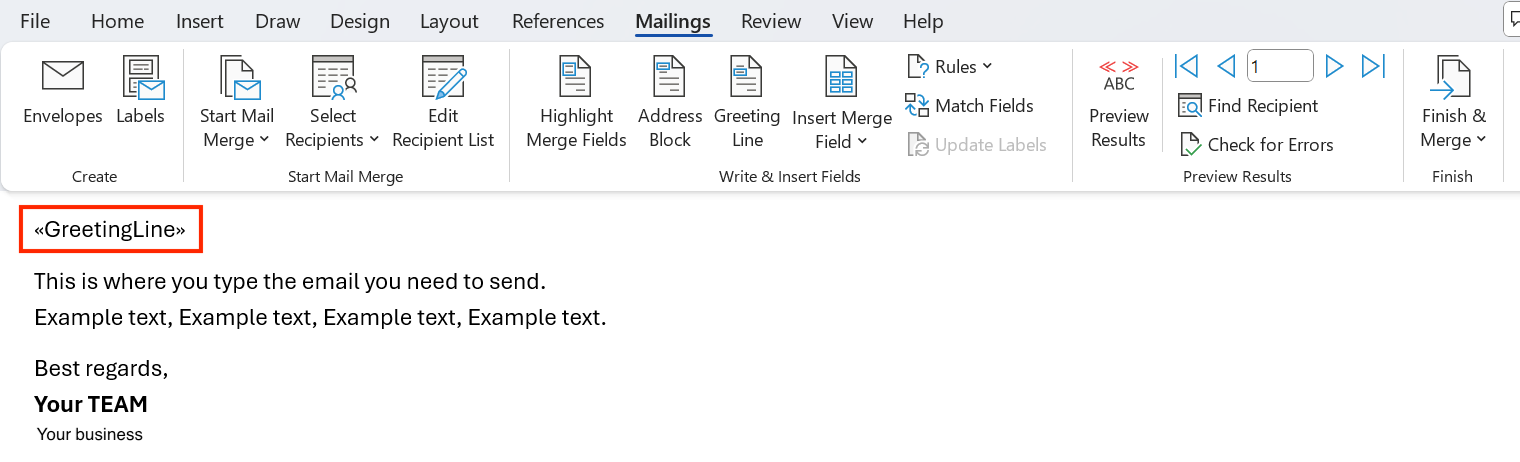
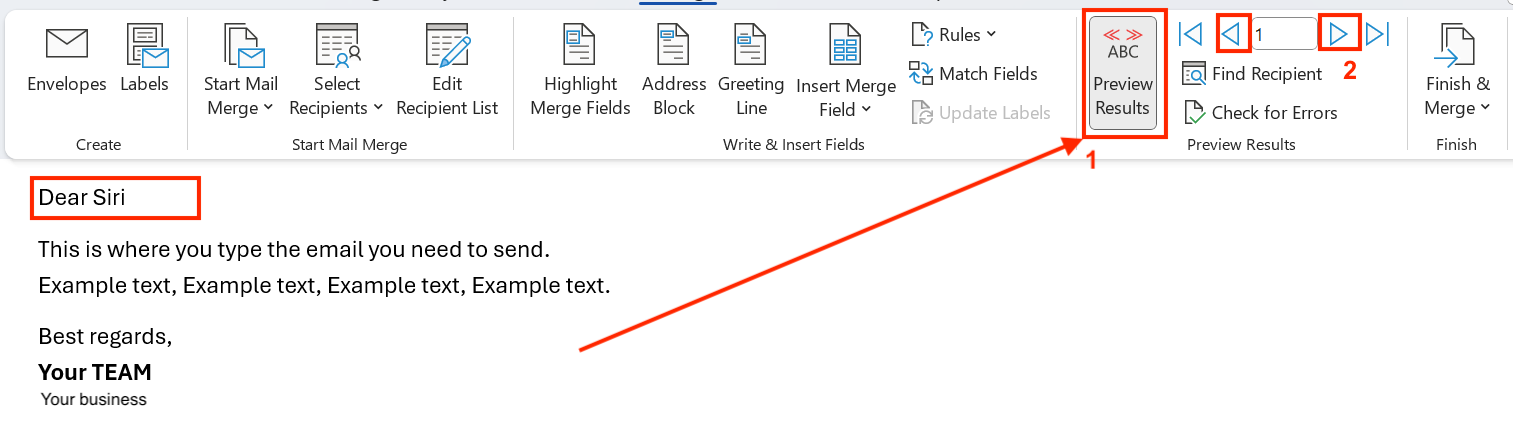
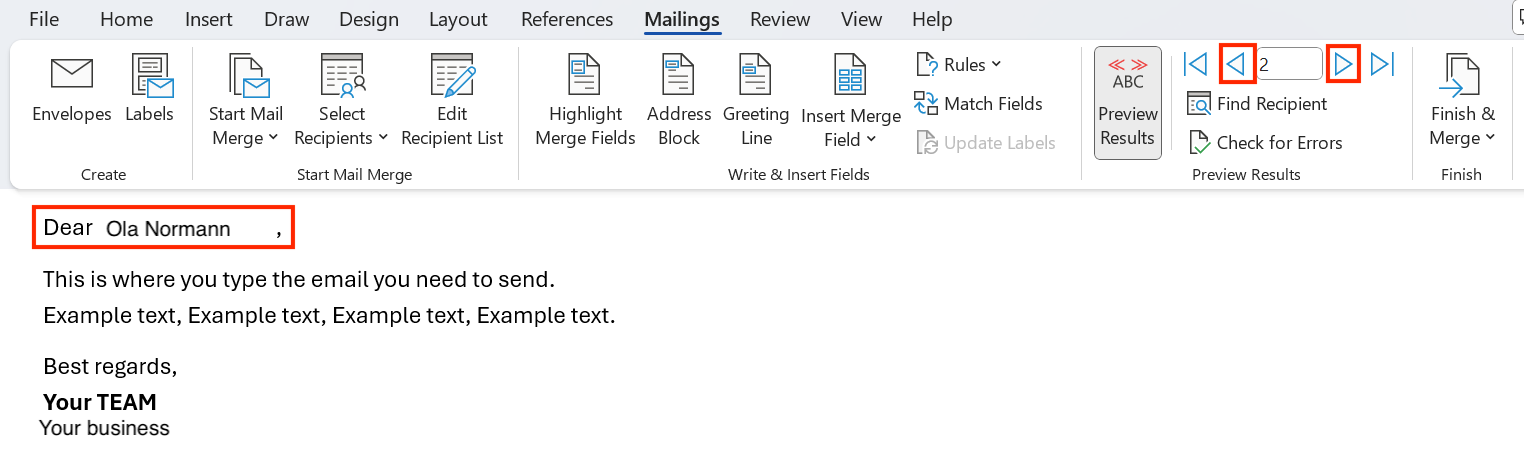
11, Now click the ABC Preview Results. Switch between the numbers, and you will see the details change.
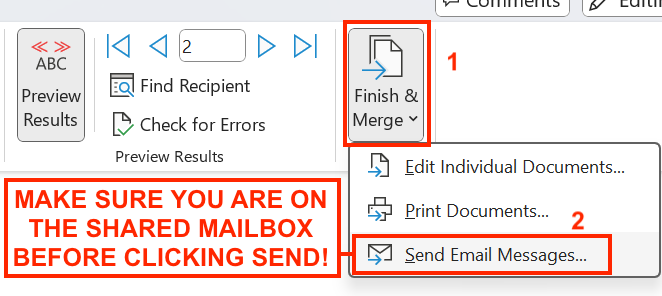
12, Now click Finish & Merge, and make sure your Outlook are signed into the Shared Mailbox before clicking Send Email Messages...
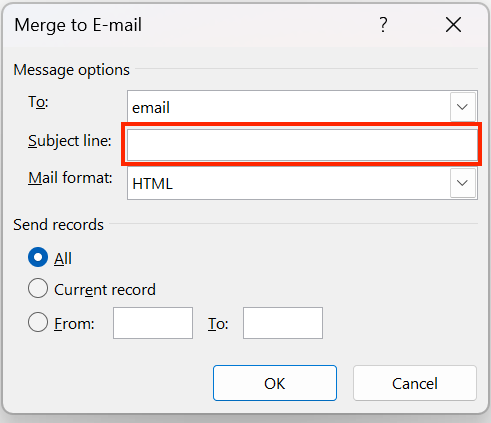
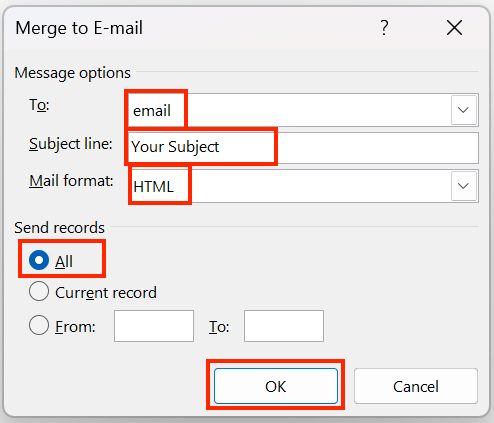
13, Write your Subject Line, and then make sure that to = email, Mail format = HTML and that Send records = All. Click OK.
If Word freezes when you click Finish & Merge → Send Email Messages, the send process will fail and you won’t be able to continue.
To close Word safely:
- Press Ctrl + Alt + Delete on your keyboard.
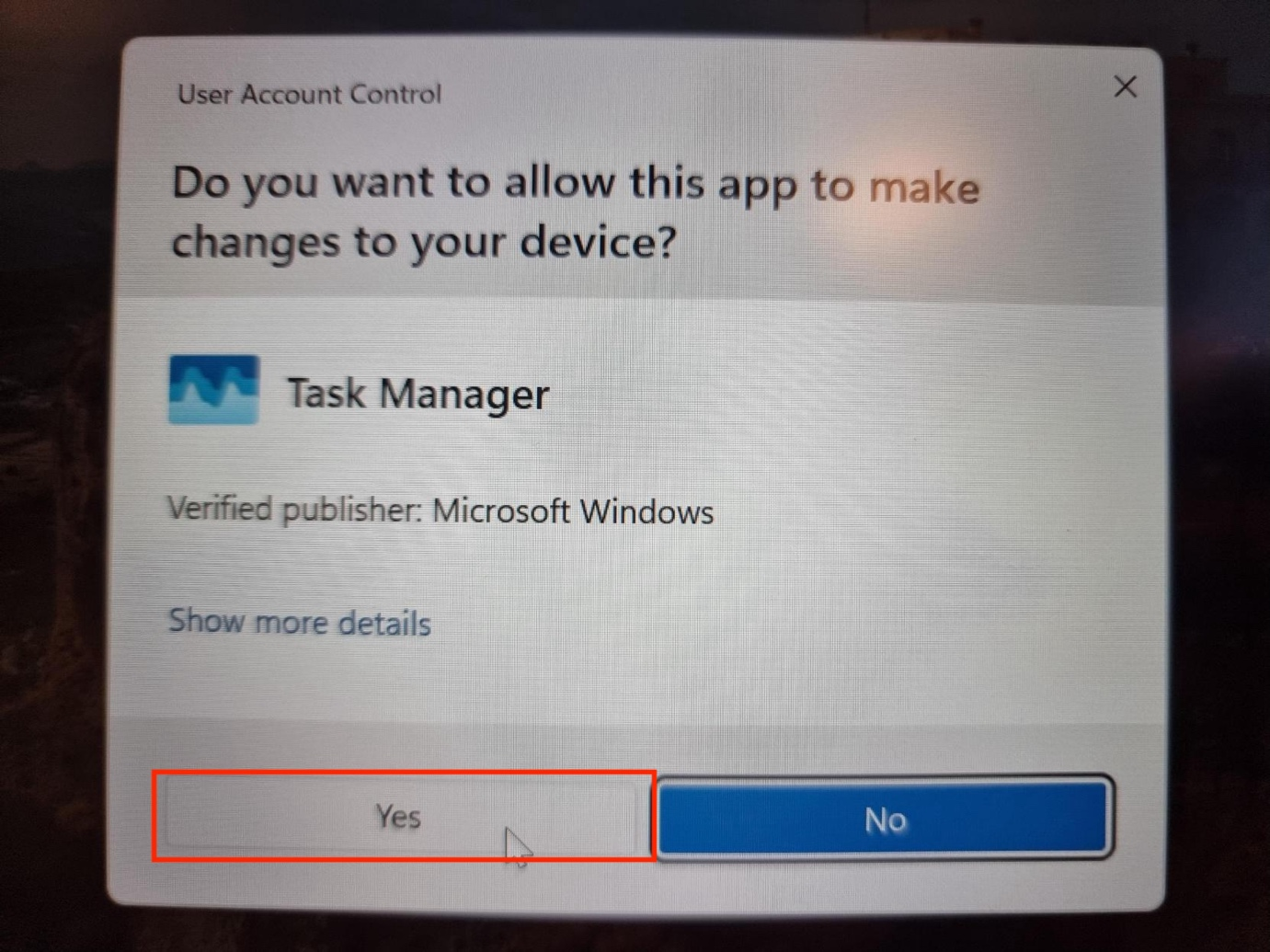
- Select Task Manager.
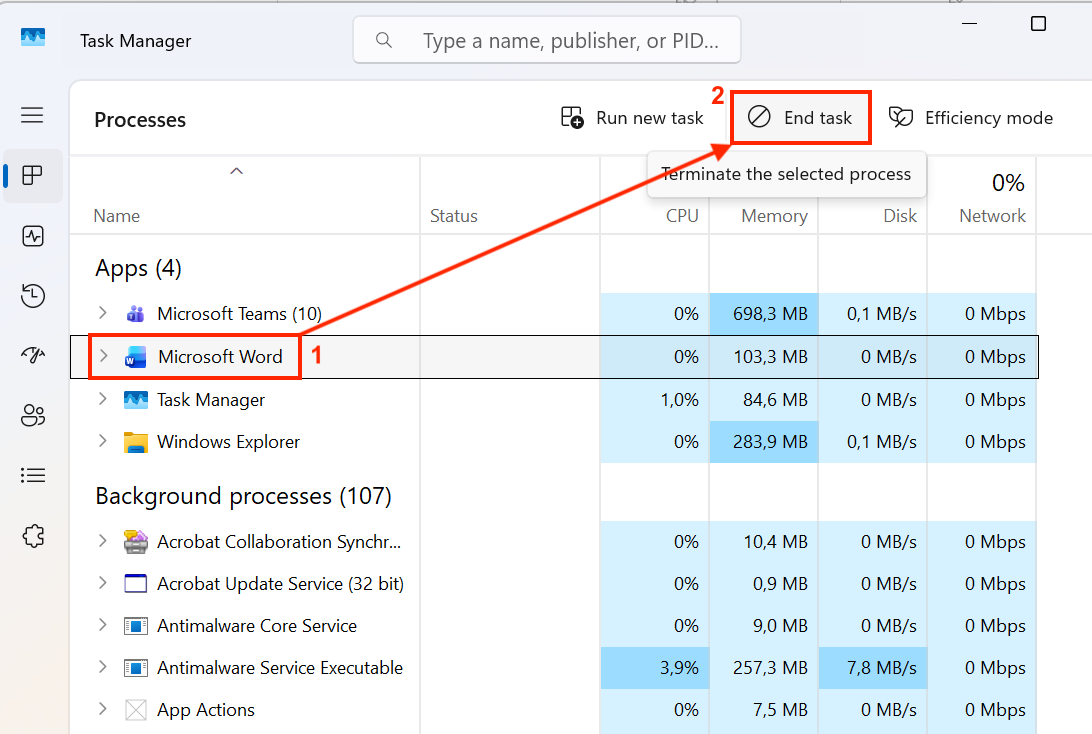
- Find Microsoft Word in the list.
- Choose End Task.
After forcing Word to close, you will also need to restart your computer.
This is because Outlook may become unresponsive after a failed Mail Merge send, and it may refuse to open until after a reboot.
14, Confirm with a co-worker that they received the email.
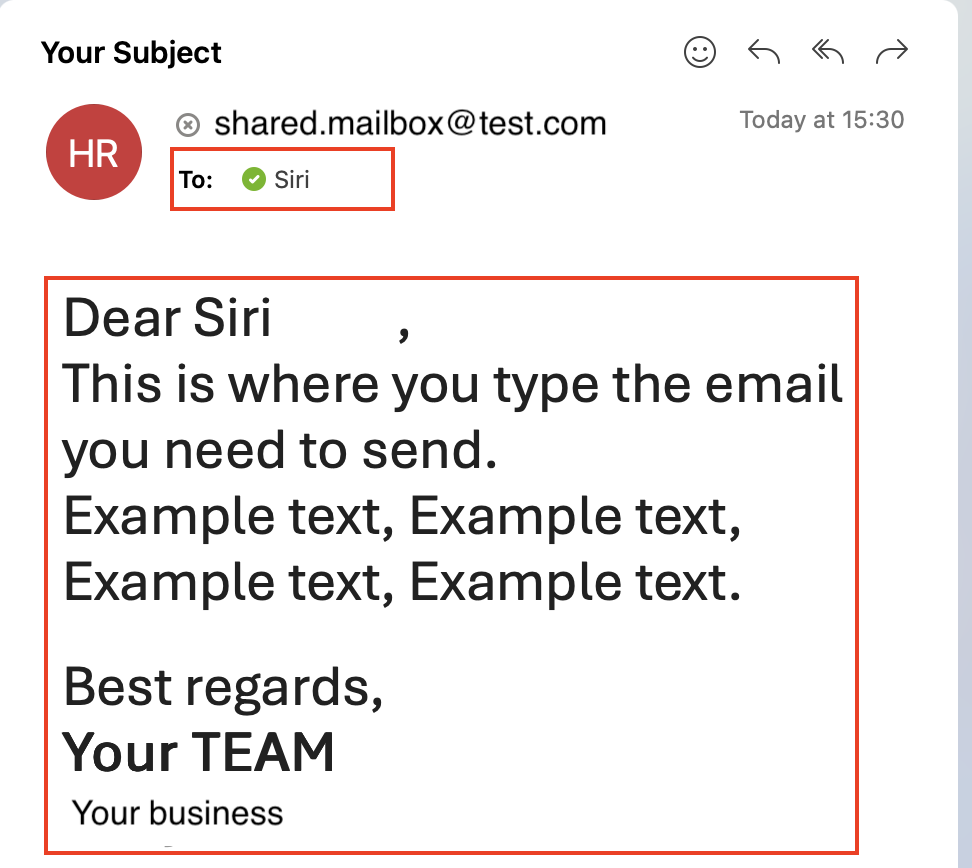
And you are done 😄